-01%201.svg)
Key Takeaways
Why Your Alt+F3 Muscle Memory Is Slowing You Down
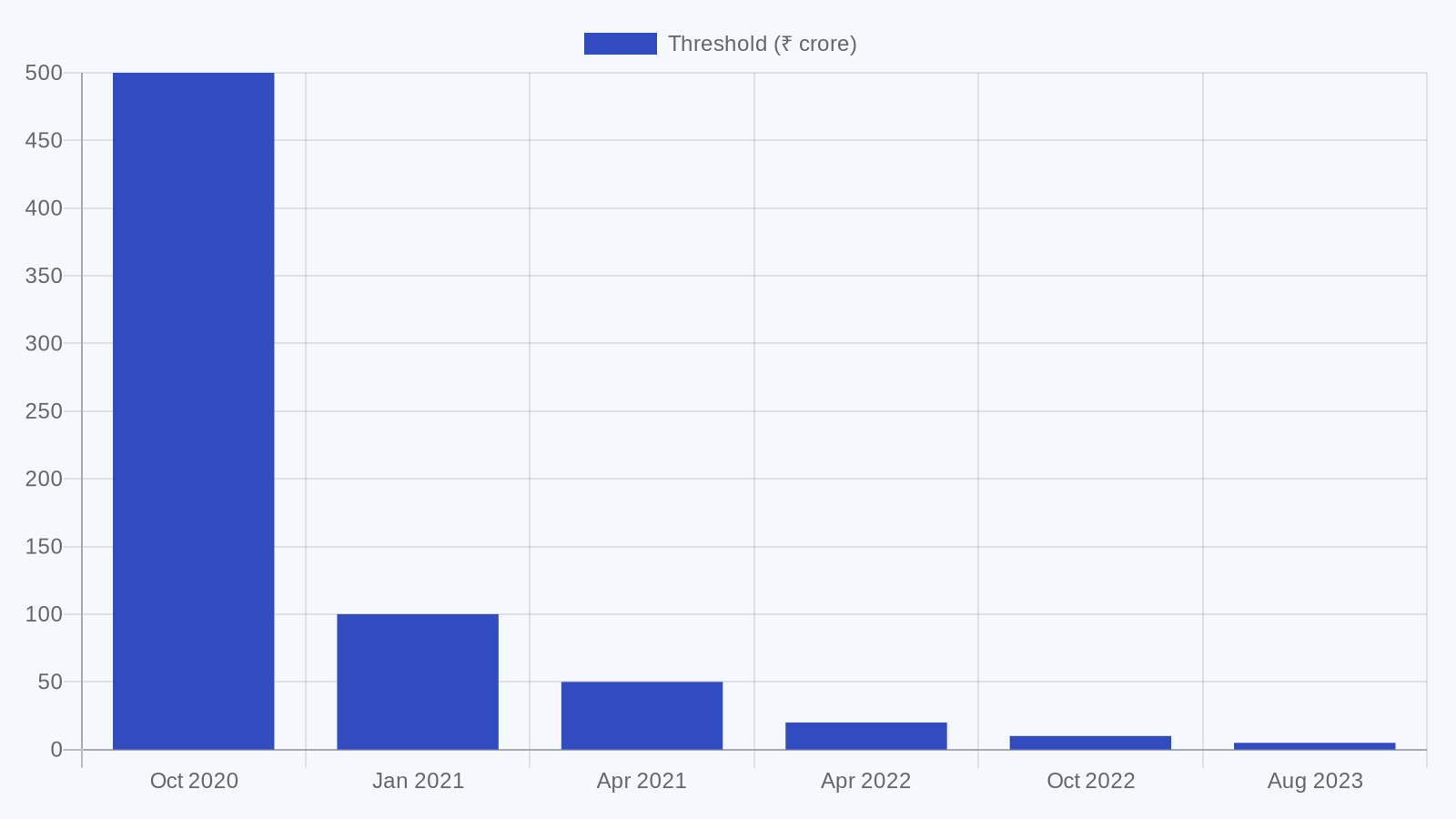
Successive CBIC notifications cut the e-invoicing threshold from ₹500 crore to ₹5 crore in under 3 years.
Switching companies mid-task costs you more time than most shortcuts save, especially if you are still pressing Alt+F3 out of Tally ERP 9 habit while working in Tally Prime. In Prime, the Company menu is mapped to F3, not Alt+F3. The change seems small, the impact on speed is large.
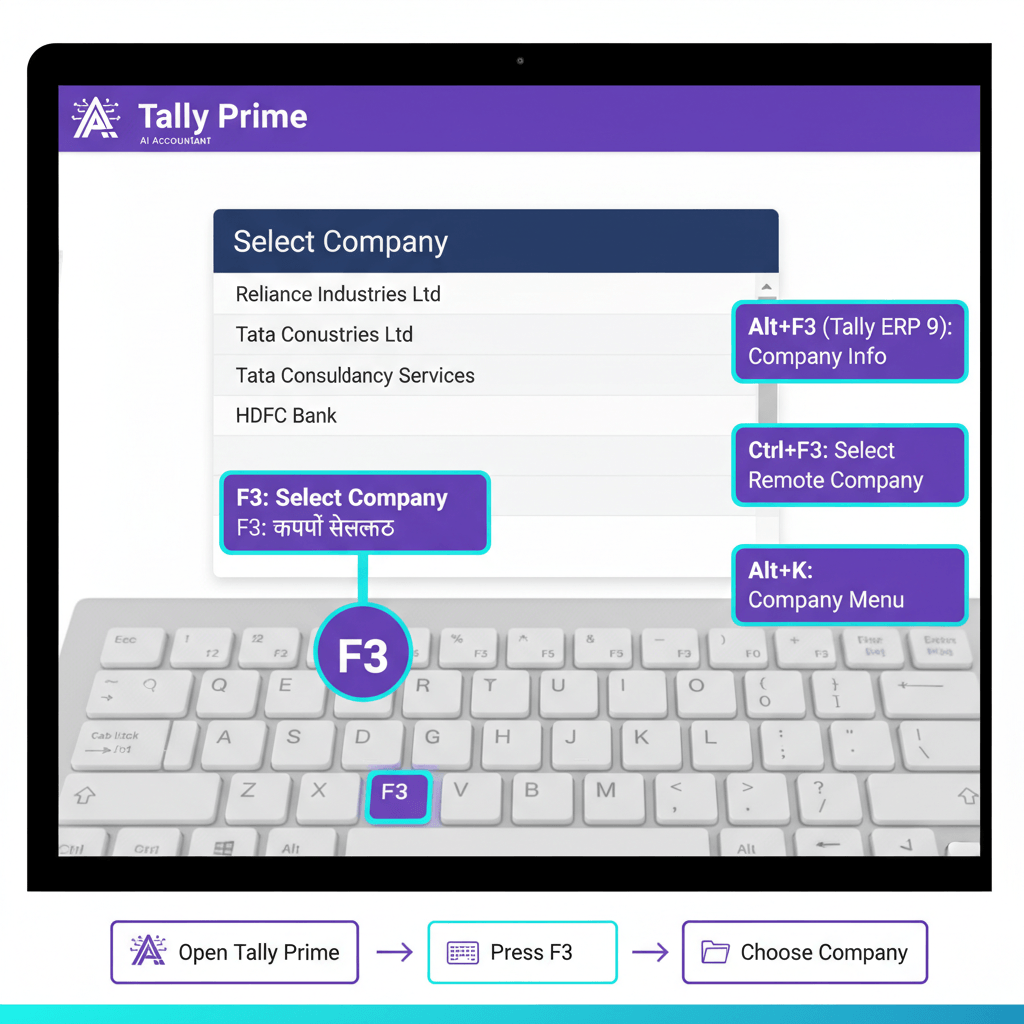
Quick rule: Press F3, choose Select Company, press Enter. That is it.
Select Company In Tally Prime: The Short Answer
In Tally Prime, pressing F3 from any screen opens the Company panel. Arrow to Select Company, press Enter, then choose the target company from the list.
ActionTally Prime KeyTally ERP 9 KeyOpen Company MenuF3 or Alt+KAlt+F3Select CompanyF3 → Select CompanyAlt+F3 → Select CompanyCreate CompanyF3 → Create CompanyAlt+F3 → Create CompanyAlter CompanyF3 → Alter CompanyAlt+F3 → Alter CompanyShut CompanyCtrl+F3Alt+F3 → Shut Company
The most common mistake is pressing Alt+F3 by force of habit. In Tally Prime, it does not open the Company menu. Use F3 or Alt+K instead.
What Is The Shortcut Key To Select Company In Tally Prime?
The official shortcut to select a company in Tally Prime is F3, available from every screen, including voucher entry and reports.
Step-By-Step: Using F3 To Select A Company
No navigating back to Gateway, no closing first, the switch is instant.
Alternate Path: Alt+K
Pressing Alt+K opens the same Company menu as F3. If your keyboard requires Fn for function keys, Alt+K is a reliable fallback.
What Changed From Tally ERP 9
Tally ERP 9 routed company actions through Alt+F3. Tally Prime splits these actions, F3 for select, create, alter, and Ctrl+F3 for shut. Once users stop reaching for Alt+F3, switch time drops to a couple of seconds.
Tally ERP 9 Vs Tally Prime: Company-Related Shortcut Mapping
The biggest navigation change between ERP 9 and Prime sits in company management. ERP 9 used a single entry point, Alt+F3. Prime spreads the actions logically across F3, Alt+K, and Ctrl+F3.
ActionTally ERP 9Tally PrimeOpen Company MenuAlt+F3F3 or Alt+KSelect CompanyAlt+F3 → SelectF3 → Select CompanyCreate CompanyAlt+F3 → CreateF3 → Create CompanyAlter CompanyAlt+F3 → AlterF3 → Alter CompanyShut CompanyAlt+F3 → ShutCtrl+F3
Why Alt+F3 Muscle Memory Causes Problems
Years of ERP 9 usage wires Alt+F3 into your fingers. In Prime, that key does nothing, or something unrelated, depending on context. Each failed attempt costs seconds, repeated dozens of times daily, which adds up. Retrain once, and the time savings stick.
Switching Between Multiple Loaded Companies
Load more than one company, then use F3 → Select Company to switch. There is no separate switch shortcut, F3 handles both initial selection and in-session switching. If you are chasing bigger speed gains than this, consider reducing manual data entry, automation often saves more time than any keystroke.
Quick Speed-Ups: Most-Used Tally Prime Keys And Hindi Cheat Sheet
Beyond company management, a small set of keys will carry your daily work. A fuller roundup is here, Tally Prime shortcuts.
KeyActionF2Change DateAlt+GGo To, universal navigation and searchF4Contra VoucherF5Payment VoucherF6Receipt VoucherF7Journal VoucherF8Sales VoucherF9Purchase VoucherAlt+PPrint current report or voucherAlt+EExport current report or voucherF3Company menu, Select, Create, AlterCtrl+F3Shut Company
Pro tip: Alt+G opens a universal search that jumps to any report, master, or voucher. It replaces long menu paths, especially when you are deep in work.
Tally Shortcut Keys In Hindi: Where To Find Them
Tally’s help portal presents shortcut documentation with a language selector that includes Hindi. There is no single downloadable Hindi PDF from the official source, so the practical approach is to open each shortcut topic in Hindi and compile a one-pager for your team.
Voucher Shortcuts: The F4–F9 Pattern
F4 to F9 follow a clean mnemonic, Contra, Payment, Receipt, Journal, Sales, Purchase. The pattern holds from ERP 9 to Prime. F10 brings up Other Vouchers for less common entries.
Frequently Asked Questions
What is the shortcut key of select company in Tally Prime?
Press F3 from any screen to open the Company menu, arrow to Select Company, then press Enter. A list of loaded companies appears, choose your target and press Enter again. This works from voucher entry, reports, and the Gateway. In Tally ERP 9 this was Alt+F3, which opened a separate Company Info modal.
Can I use Alt+F3 in Tally Prime the way I did in Tally ERP 9?
No. Alt+F3 no longer opens company options in Tally Prime. Use F3 for Select, Create, Alter, and Ctrl+F3 for Shut Company. Teams migrating from ERP 9 should retrain to F3 on day one to avoid stalls.
How do I shut a company in Tally Prime using only the keyboard?
Press Ctrl+F3. If multiple companies are loaded, Ctrl+F3 shuts the currently active one. To shut a different company, switch first with F3 → Select Company, then press Ctrl+F3. This separation reduces accidental closures.
If I have multiple companies loaded in Tally Prime, how do I switch between them without a mouse?
Press F3, choose Select Company, arrow to the target, press Enter. No shutdown is required. This workflow is faster and safer than ERP 9’s shut, reopen pattern, and it keeps work-in-progress intact.
How can I keep data entry fast while switching companies throughout the day?
Pair F3 switching with Alt+G for navigation, and use F4–F9 for voucher entry. If manual capture is your bottleneck, tools like AI Accountant can ingest bills and bank statements, then post back to Tally Prime, so you switch companies for review and approvals while the entries sync in the background.

Rohan Sinha is a fintech and growth leader building aiaccountant.com, focused on simplifying accounting and compliance for Indian businesses through automation. An IIT BHU alumnus, he brings hands-on experience across 0 to 1 product building, growth, and strategy in B2B SaaS and fintech.