-01%201.svg)
Key Takeaways
- Tally Prime has over 130 shortcut keys covering voucher entry, navigation, GST, inventory, and reporting. The table below organizes every essential shortcut you need for daily accounting work.
- Biggest time savers for daily use: Ctrl + A (save), F2 (change date), Alt + G (go to any screen), F5 through F9 (open vouchers instantly), and Ctrl + R (repeat narration) eliminate most mouse clicks.
- Mastery comes from grouped practice, not memorization. Learn 5 to 10 shortcuts per week by functional category (voucher keys, navigation keys, report keys) and they become muscle memory within a month.
- A downloadable PDF with all 130+ shortcuts is included below, organized by category and updated for Tally Prime 2026, so you can print it and keep it at your desk.
- Shortcuts speed up data entry, but automation eliminates it. If your team still spends hours on bill extraction, transaction categorization, or GST reconciliation inside Tally, AI Accountant's bookkeeping automation handles the repetitive execution so you focus on decisions.
Tally Prime is one of the most trusted and widely used software solutions in India for accounting and business management.
However, if you rely only on the mouse for navigating through Tally, your work will be noticeably slower. Tally Prime shortcut keys solve this problem.
These keyboard shortcuts are extraordinary time saving tools. They let you switch between menus, create vouchers, open reports, and record transactions in seconds, all without touching the mouse.
We have collected the most frequently used Tally Prime shortcut keys for daily use in this refreshed 2026 guide. Whether you are a beginner learning Tally or a seasoned accountant trying to work faster, this complete list will help you carry out tasks more efficiently and boost your overall productivity.
Tally Prime Shortcut Keys in 2026: What's New
Tally Prime has continued to receive updates heading into 2026, and several changes affect how shortcut keys behave or what new functions are accessible from the keyboard. If you upgraded from an older release, here is what matters now.
Connected services and e invoicing shortcuts: With India's GST portal expanding e invoicing requirements (the threshold dropped to ₹5 crore from April 2023, and CBIC has been progressively tightening compliance expectations for smaller businesses as outlined in CBIC circulars), Tally Prime now surfaces more connected features directly from the voucher screen. Shortcut combinations like Alt + O (upload options) and Ctrl + K (Control Centre) are more relevant than ever for pushing e invoices and e way bills without leaving Tally.
Who is affected most: CA firms handling 10+ company files and SME finance teams filing monthly returns inside Tally feel the biggest impact. If you manage multi company GST reconciliation manually, keyboard navigation alone won't close the gap. Teams are increasingly pairing Tally with automated GST reconciliation tools to match GSTR 2B data against purchase books without manual cross checking.
Cost of ignoring updates: Using deprecated navigation paths or skipping the latest TallyPrime releases can cause e invoice upload failures, ITC mismatch flags during return filing, and delayed reconciliation. Late or incorrect GST filings attract interest at 18% per annum under Section 50 of the CGST Act, plus penalties for non compliance.
What to do now:
- Ensure you are running the latest TallyPrime release (check via Ctrl + K, then look for update notifications).
- Test Alt + O from your sales voucher screen to confirm connected e invoicing is configured.
- Review your F11 (Company Features) settings to make sure GST, e invoicing, and e way bill toggles match your current turnover requirements.
Tally Prime Shortcut Keys List
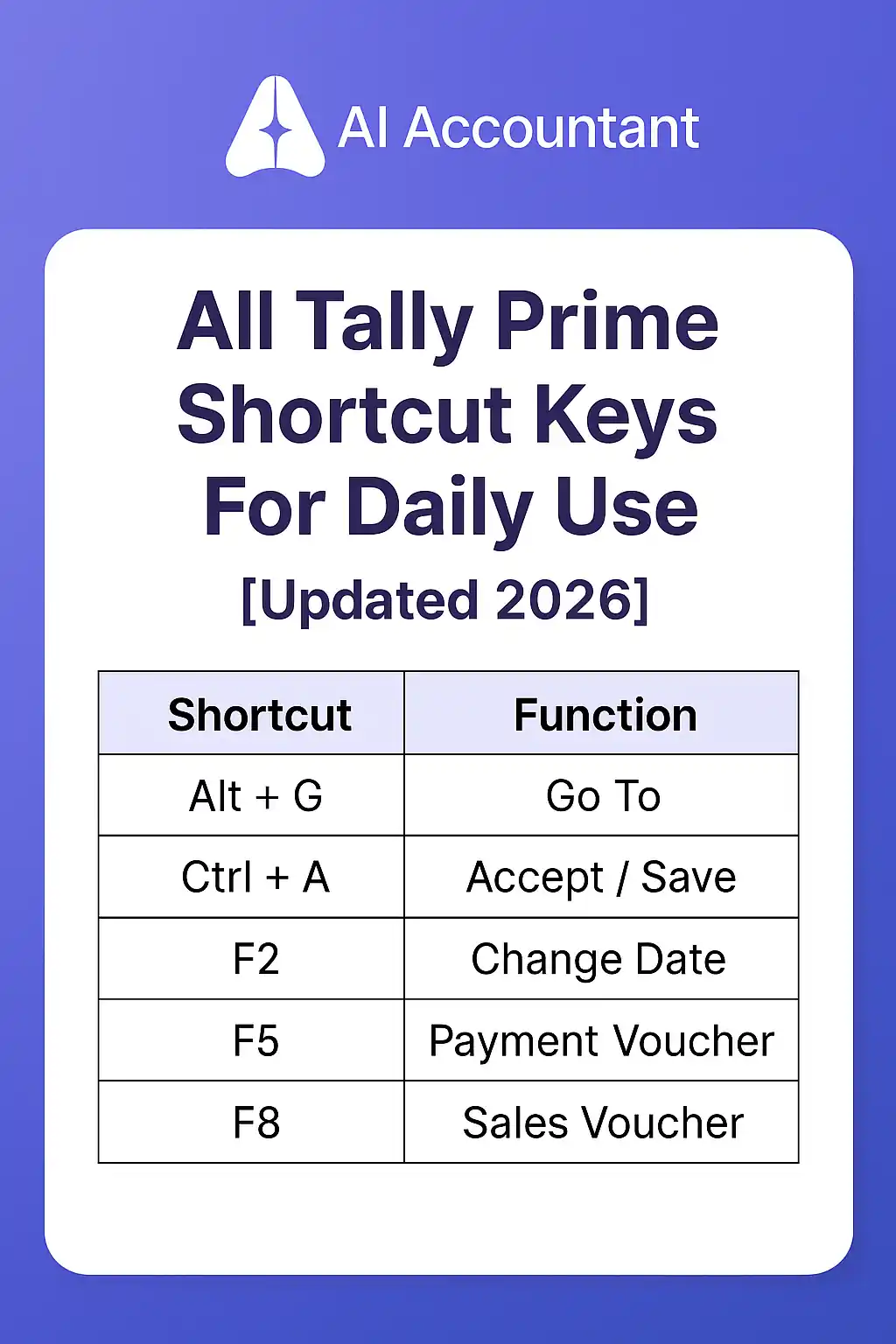
Below is an exhaustive, scannable table of general shortcut keys that apply across many screens in Tally Prime. This covers navigation, common actions, saving, printing, exporting, company and data actions, and quick selection keys. For each shortcut we have added a short Function / Action and a practical usage example.
| Shortcut Key | Function / Action | Usage Example |
|---|---|---|
| Ctrl + A | Accept / Save current screen | Save a voucher, ledger or master after entering details. |
| Esc | Cancel / Go back / Close current popup | Close a dialog or go back to previous screen without saving. |
| Ctrl + Q | Quit / Exit (from many screens) | Exit a report or screen quickly (may prompt to save). |
| Ctrl + P | Print current report / screen | Print an invoice, ledger or reports like Balance Sheet. |
| Ctrl + E | Export current report | Export a ledger report or voucher to Excel, PDF, or XML. |
| Ctrl + I | Insert / Toggle insert | Insert a line or item while entering voucher details. |
| Ctrl + R | Repeat narration | Reuse narration from previous voucher to save typing. |
| Ctrl + N | Toggle Calculator / numeric mode | Open small calculator when entering amounts. |
| Ctrl + F1 | Help / Open context help | Open help for the current screen or search help topics. |
| Ctrl + F2 | Change Date | Quickly change voucher date before saving. |
| Ctrl + F4 | Change Period | Adjust period in a report (From to To dates). |
| F1 | Select Company / Accounts Inventory toggle | Open Company selection or switch voucher mode. |
| F2 | Change Date | Change date on voucher entry screen. |
| F3 | Select Company / Change Company | Switch to another company quickly. |
| F4 | Contra voucher | Create a Contra for cash to bank transaction. |
| F5 | Payment voucher | Open Payment voucher creation screen. |
| F6 | Receipt voucher | Open Receipt voucher creation screen. |
| F7 | Journal voucher | Open Journal voucher screen. |
| F8 | Sales voucher | Open Sales voucher screen. |
| F9 | Purchase voucher | Open Purchase voucher screen. |
| F10 | Reversing Journals / Memo vouchers | Toggle memo or reversal in voucher entry. |
| F11 | Company Features | Enable or disable GST, Inventory features for the company. |
| F12 | Configuration | Change configurations for reports and screens. |
| Alt + A | Add voucher | Add a new voucher from a report. |
| Alt + C | Create master | Create a new ledger or item while entering a voucher. |
| Alt + D | Delete voucher/master | Delete a selected voucher or remove report column. |
| Alt + E | Export (quick) | Quickly open Export dialog. |
| Alt + F1 | Toggle detailed/summary view | View summary or detailed ledger. |
| Alt + F2 | Change Period | Set a new period for the current report. |
| Alt + F3 | Company selection | Load a different company. |
| Alt + M | Mail report | Email voucher or report. |
| Alt + O | Upload options | Used for e invoicing and online uploads. |
| Alt + 2 | Duplicate voucher | Create a copy of an existing voucher. |
| Ctrl + Enter | Alter master | Edit ledger or item from voucher or report. |
| Ctrl + L | Select ledger | Choose ledger in accounting plus inventory voucher. |
| Ctrl + O | Select Godown | Change godown or location. |
| Ctrl + U | Select Units | Pick unit of measure for quantities. |
| Ctrl + S | Open TallyShop | Quick access to add ons and marketplace. |
| Ctrl + K | Control Centre | Access support, configuration, and update screens. |
| Ctrl + V | View / Toggle voucher types | Switch voucher type view. |
| Ctrl + F9 | Inventory features / Production | Open manufacturing toggles. |
| Ctrl + Shift + C | Copy value | Copy field value to clipboard. |
| Shift + Enter | Toggle fields / accept field | Accept field without moving down. |
| Alt + G | Go To | Type to jump to any report or voucher. |
| Ctrl + G | Switch To | Switch between screens or modes. |
| Ctrl + M | Toggle Mail | Quick mail options. |
| Ctrl + F | Find / Search | Search within report or list. |
| Ctrl + Alt + N | Notifications | Open notifications panel. |
How to Become an Expert at Using Tally Prime Shortcut Keys
Trying to memorize all Tally Prime keyboard shortcuts in one sitting will feel overwhelming. The good news is that consistent daily usage turns them into second nature. Here are proven tips that help accountants and business users build shortcut fluency.
Group similar shortcuts together
Start by separating keys by function. For example:
- Voucher creation: F4 through F10
- Navigation: Alt + G, Ctrl + G
- Configuration: F11, F12
When you learn them by functional groups, your brain links shortcuts to workflows. Recall becomes much easier.
Practice shortcuts in real work scenarios
Don't just read a list. Use shortcuts while you record vouchers, generate reports, or print invoices.
What starts as a conscious effort quickly becomes muscle memory when you repeat the keyboard action regularly.
Use repetition and gradual learning
Focus on 5 to 10 shortcut keys each week. Once those feel natural, add new ones to your routine.
Spaced repetition is far more effective than cramming everything in one session.
Create a personalized "Shortcut Key Cheat Sheet"
Print the most important shortcuts on one page and pin it near your workstation.
Highlight the ones you use daily, such as Ctrl + A (Accept), Alt + G (Go To), and F2 (Change Date), so you can spot them quickly.
Leverage mnemonic techniques
Associate shortcuts with simple memory hints. For instance, "F8 for Sales" (the number 8 looks like an S turned sideways) or "Ctrl + A = Accept." Mnemonics make the shortcut stick in memory faster.
Review regularly
Spend 5 minutes at the end of each week reviewing the shortcuts you practiced most.
Over time, you will navigate Tally Prime so fluently that you will hardly reach for the mouse. The Institute of Chartered Accountants of India (ICAI) regularly emphasizes the importance of technology proficiency for accounting professionals, and keyboard fluency in your primary tool is a foundational skill.
Download the Complete Tally Prime Shortcut Keys PDF (2026)
At AiAccountant, our goal is to provide ready to use, practical resources for finance professionals. We have put together a complete Tally Prime Shortcut Keys PDF that includes:
- Over 130 shortcuts, properly organized and printer friendly
- Updated for Tally Prime 2026
This PDF is designed to help:
- Accountants who want to speed up data entry and reporting
- Students and learners preparing for accounting or Tally certification exams
- Business owners who wish to reduce manual clicks in daily bookkeeping
Inside the downloadable handbook, you will find:
- Shortcuts organized by category: General, Vouchers, Reports, Inventory, GST, and more
- A clear explanation for each key combination
- Compatibility confirmed with the latest version of Tally Prime
Download Tally Prime Shortcut Keys List.
Tally_Prime_Shortcut_Keys Download
Conclusion
Every shortcut saves you from manual errors and wasted time. It lets you move through Tally's accounting features with speed and confidence.
Whether you are recording vouchers, analyzing reports, or preparing GST returns, consistent use of keyboard shortcuts is what separates a 30 minute task from a 10 minute one.
If this guide helped you, bookmark this page and share it with colleagues who use Tally daily. For more Tally tutorials, accounting automation guides, and finance tips, AiAccountant.com is your reliable resource for modern accounting professionals.
Frequently Asked Questions (FAQs) — Tally Prime Shortcut Keys
1. How to search in Tally Prime using shortcut key?
Press Alt + G to open the Go To search bar, which lets you find any report, voucher, master, or feature instantly. Type part of the name and Tally Prime will navigate you there. You can also use Ctrl + F to search within an open report or list.
2. How to copy a voucher in Tally Prime shortcut key?
Press Alt + 2 from the voucher list to duplicate the selected voucher instantly. You can then modify the details (date, amount, narration) before saving with Ctrl + A.
3. How to create a ledger in Tally Prime using shortcut key?
Press Alt + C while entering a voucher or anywhere a ledger name is required. This opens the ledger creation screen on the spot. After entering ledger details, press Ctrl + A to save it without leaving your current task.
4. How to edit a ledger in Tally Prime shortcut key?
Highlight the ledger and press Ctrl + Enter to open the Ledger Alteration screen. Make your changes and press Ctrl + A to save.
5. How to cancel a sales invoice in Tally Prime shortcut key?
Open the sales voucher and press Alt + X to cancel it. Tally Prime marks the invoice as "Cancelled" while keeping the transaction in your records for audit trail purposes. This works the same way for any voucher type, not just sales invoices.
6. How to save in Tally Prime shortcut key?
Press Ctrl + A to save or accept any screen in Tally Prime. This works for voucher entries, ledger creation, report configurations, and master records. It is the single most used shortcut in Tally.
7. How to activate shortcut keys in Tally Prime?
Shortcut keys are active by default in Tally Prime and do not need manual activation (2026 update). Ensure Caps Lock is off and that your function keys (F1 through F12) are not overridden by your laptop's media controls. On most laptops, pressing the Fn key alongside the function key resolves this.

Rohan Sinha is a fintech and growth leader building aiaccountant.com, focused on simplifying accounting and compliance for Indian businesses through automation. An IIT BHU alumnus, he brings hands-on experience across 0 to 1 product building, growth, and strategy in B2B SaaS and fintech.